
Digital id insurance cards
Through the Lucent Health App


How to Register for Your Lucent Health Account (Start with the Website)
Step 1: Register on the Lucent Health Portal (Required First)
- Go to: mylucenthealth.com
- Click “Register Account.”
- Enter your information:
- Member ID (from your ID card)
- If you don’t have your ID card, you can use your Social Security Number
- If you are a dependent:
- Select “Are you a dependent?”
- Enter your first name and date of birth
- Review your information and click “Finish”
- Log in using the username and password you created
Important:
All members (and dependents age 18+ must create their own account
Step 2: Download the Lucent Health Mobile App (Optional)
After you’ve registered on the website:
- Download the Lucent Health app from the App Store or Google Play
- Tap “Register Account”
- Verify your email using the one-time passcode
- Enter your:
- Member ID
- Full name
- Date of birth
- Select “Finish Enrollment”
How to Access Your ID Card
After you register and log in to the Lucent Health portal:
On the Website (Portal)
- Go to mylucenthealth.com and log in
- Navigate to the ID Card section
- You can:
- View your digital ID card
- Download or print a copy
On the Mobile App
Once logged into the Lucent Health app:
Open the app
Tap “ID Card”
Show your digital card anytime from your phone
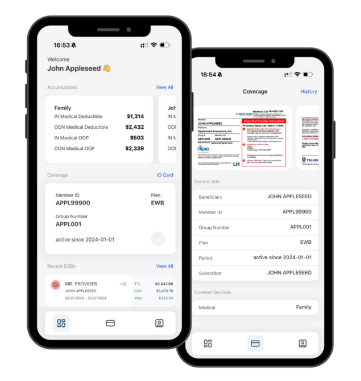
You do not need a physical card, the digital ID card can be used at doctor visits, pharmacies, and other healthcare services.
What You Can Do After Registering
- View your ID card
- Track claims and deductibles
- Find in-network providers
- Access plan documents
- Review coverage details
You don’t need a physical dental or vision card; however, if you’d like one, you can request it by downloading the app. Then favorite your preferred provider in place of dentist.